Car/Meeting Schedule
Related business processes:
- Car booking
- Meeting room booking
I. Module Access
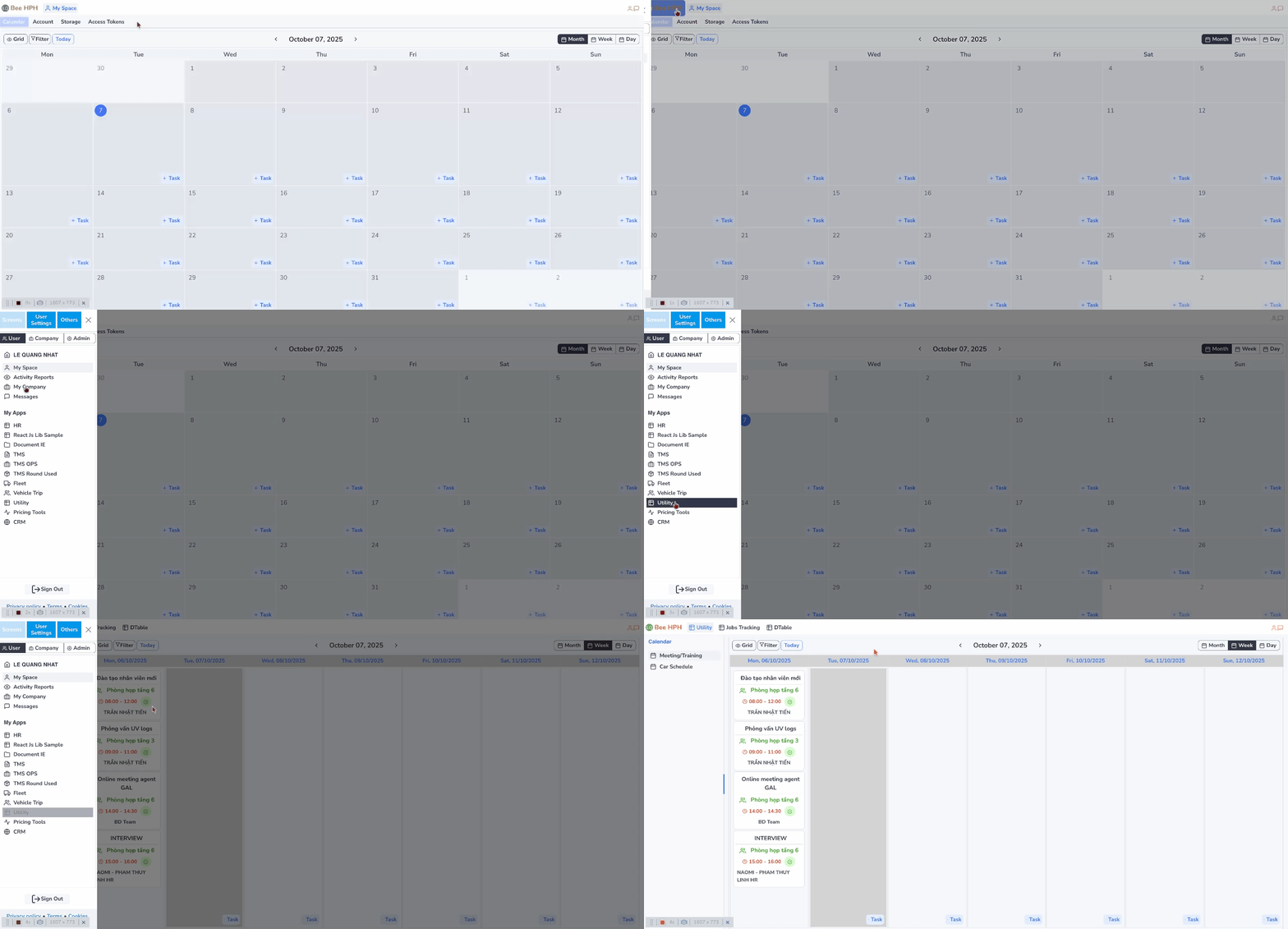
- At the top left corner of the screen, click on the company logo.
- Select User → Utilities
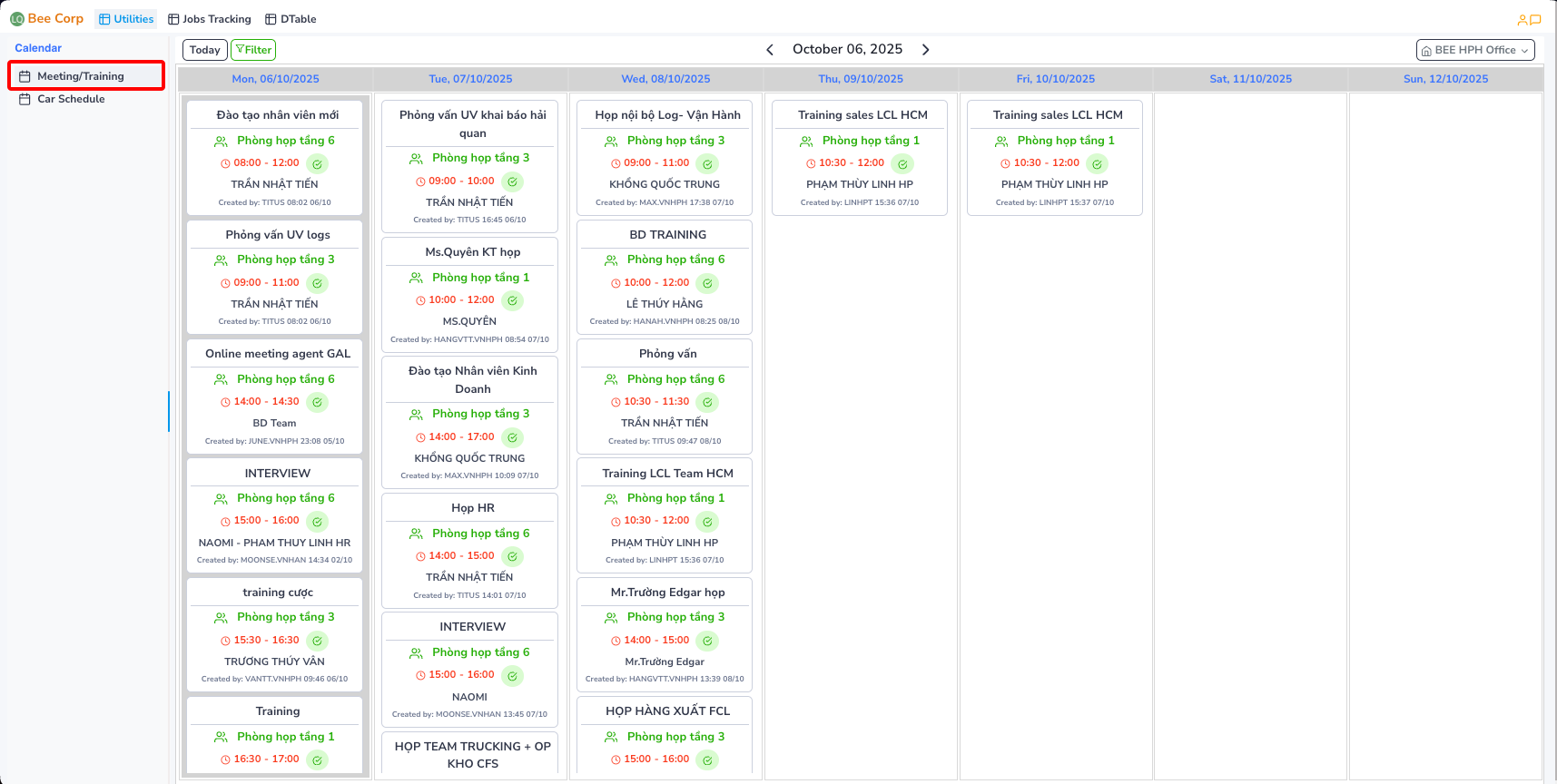
Meeting Room/Training screen:
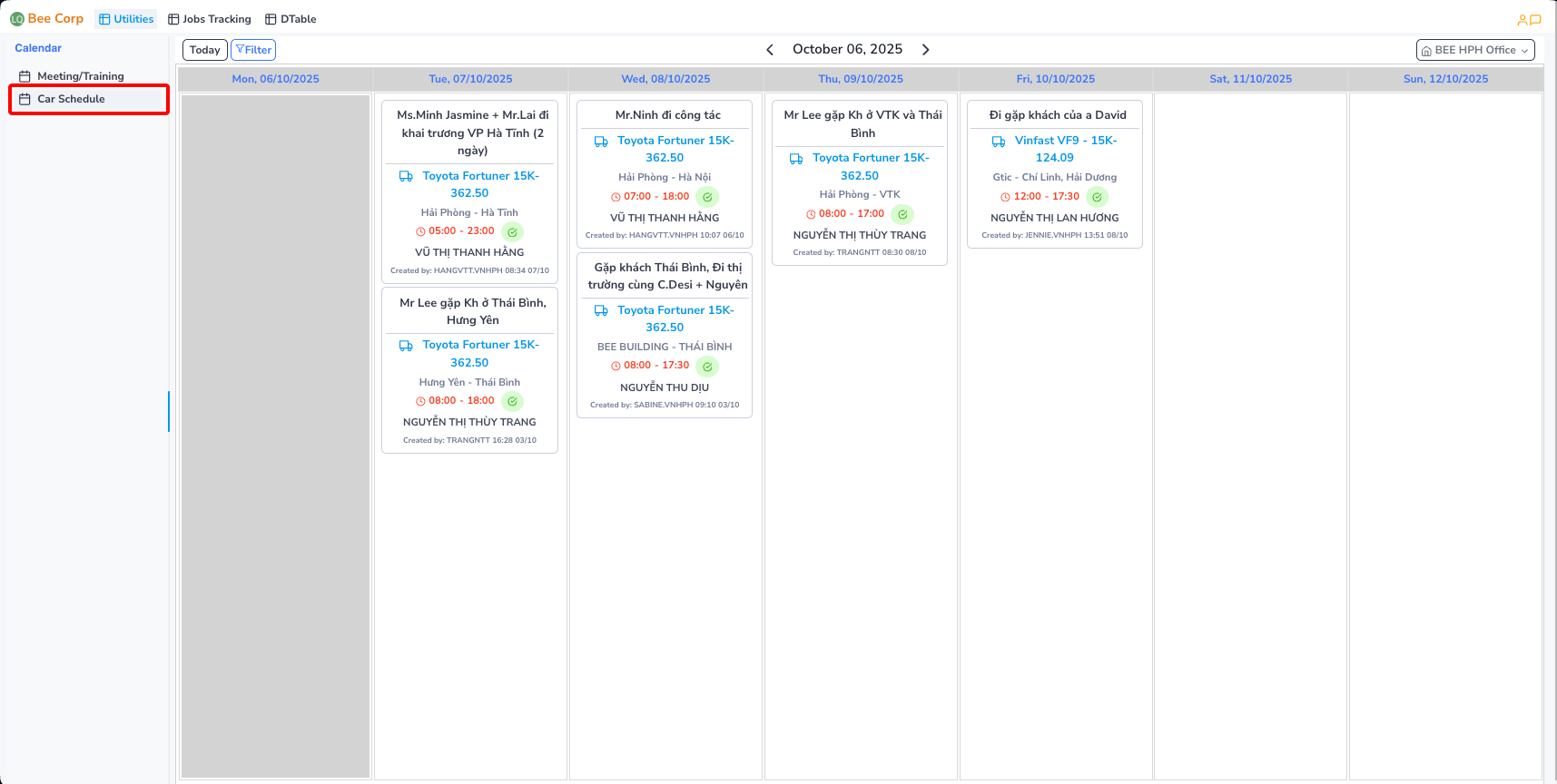
Car Schedule screen:
II. Car/Meeting Schedule Interface
1. Toolbar
Navigation:
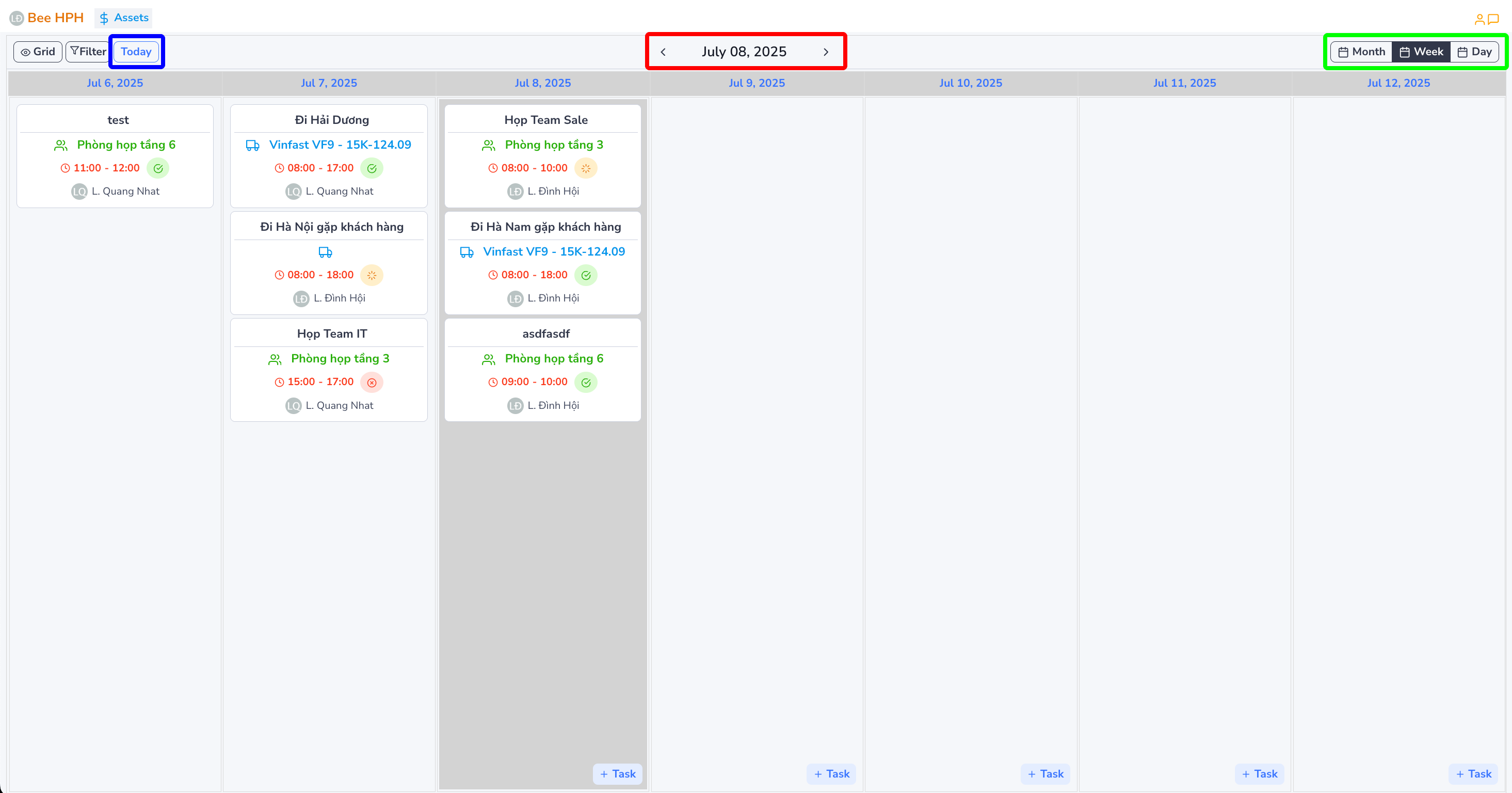
 Currently selected date, Move to previous/next week
 Return to current date
 Change calendar display mode: Week/Month/Day
2. Main Screen
Car Schedule
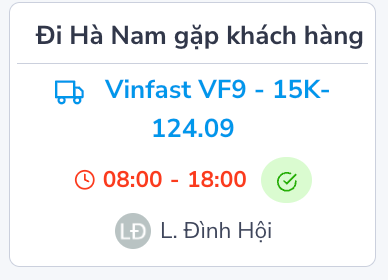
Tasks are displayed on the calendar as follows:
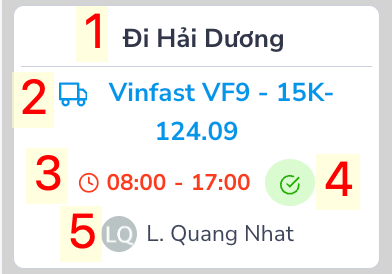
1. Content
2. Booked car
3. Car booking time period
4. Request Status:
- Approved:

- Pending:

- Rejected:

5. Requester
Meeting Room Schedule
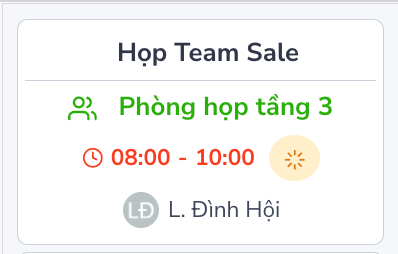
Tasks are displayed on the calendar as follows:
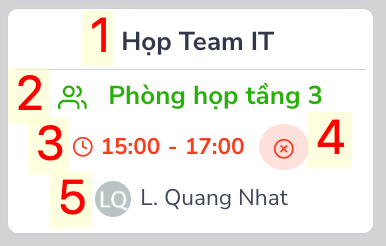
1. Content
2. Booked room
3. Time period
4. Request Status:
- Approved:
- Pending:
- Rejected:
5. Requester
III. Car/Meeting Room Booking
Car Booking
1. Select Menu Car Schedule -> Click  on the date you want to book a car.
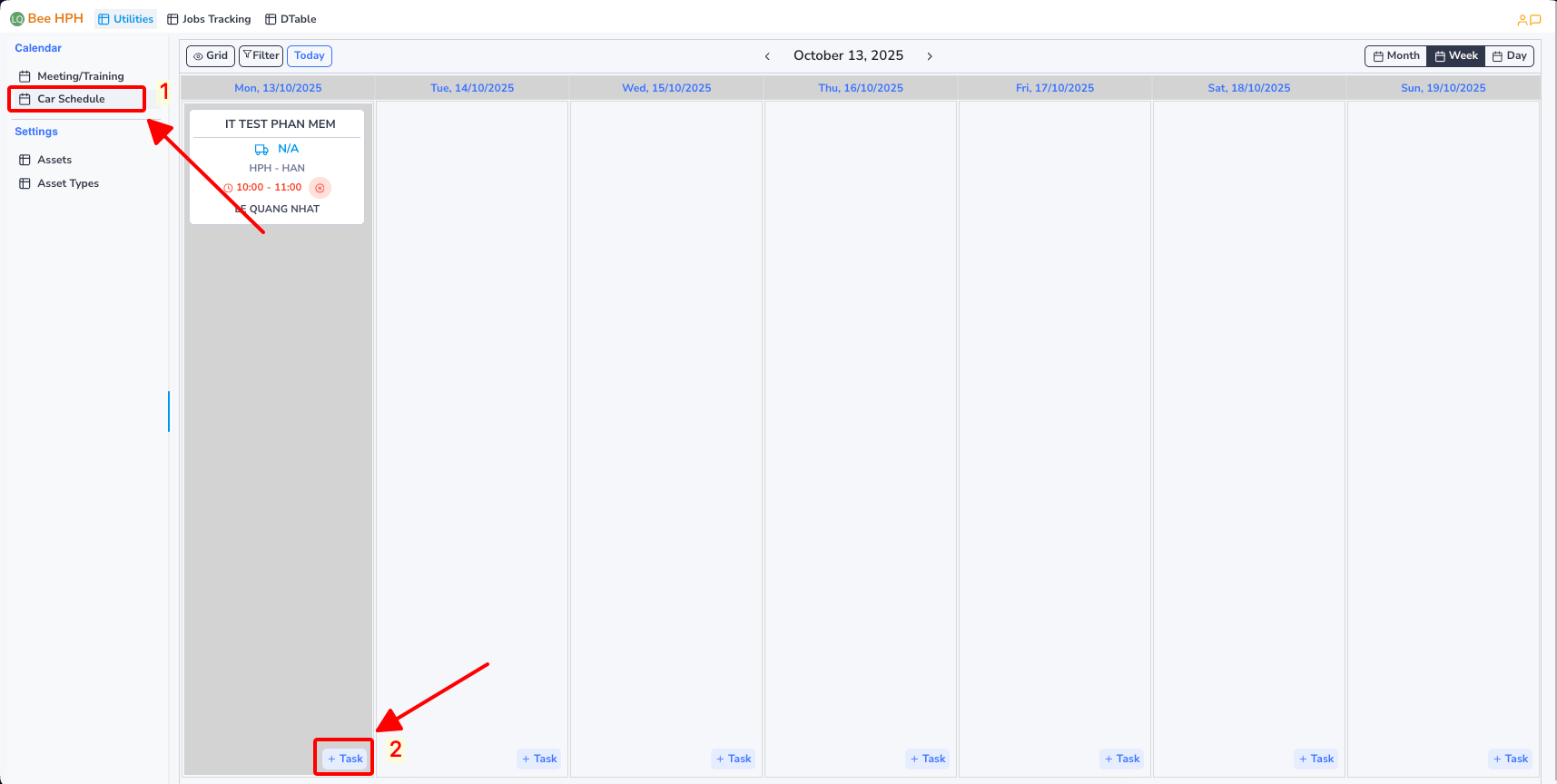
Booking screen:
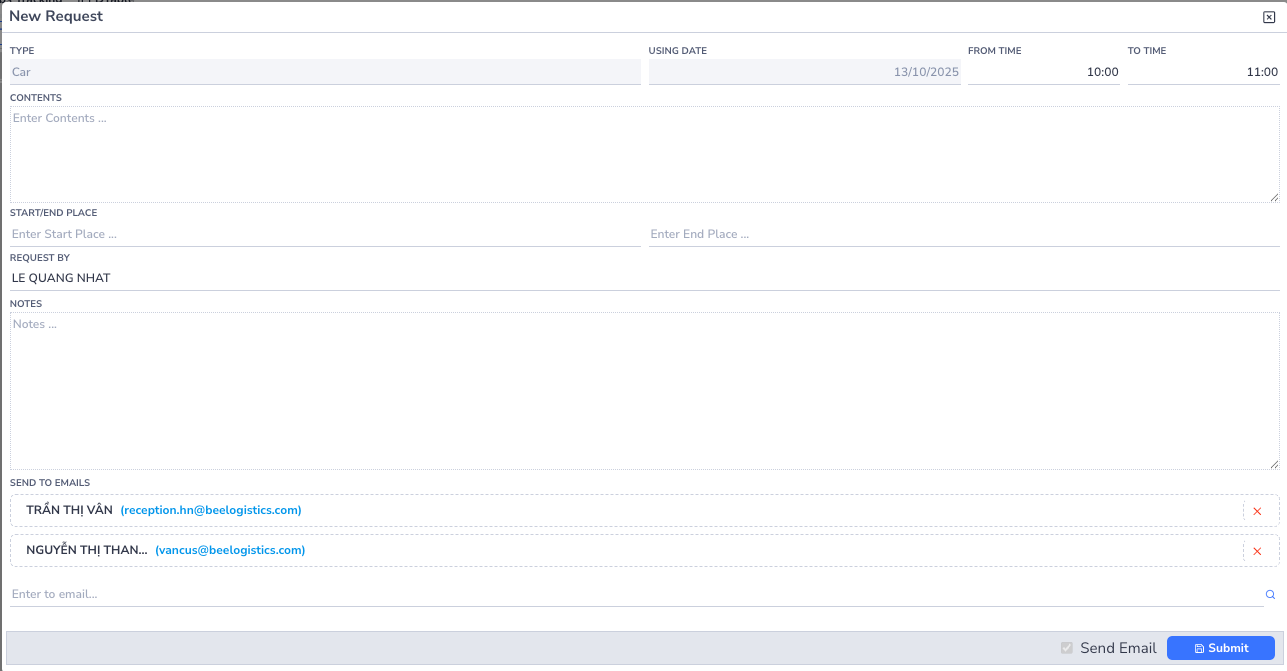
2. Fill in required information
Required information:
- From time
- To Time
- Request by
4. Click Submit

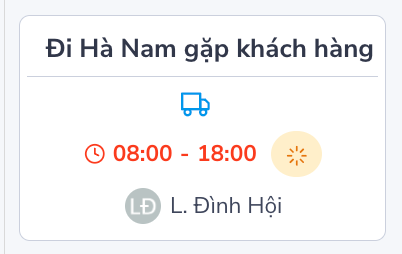
The created task is displayed on the calendar as follows, with status Pending
After creating the task, the system will send a notification email to the approver
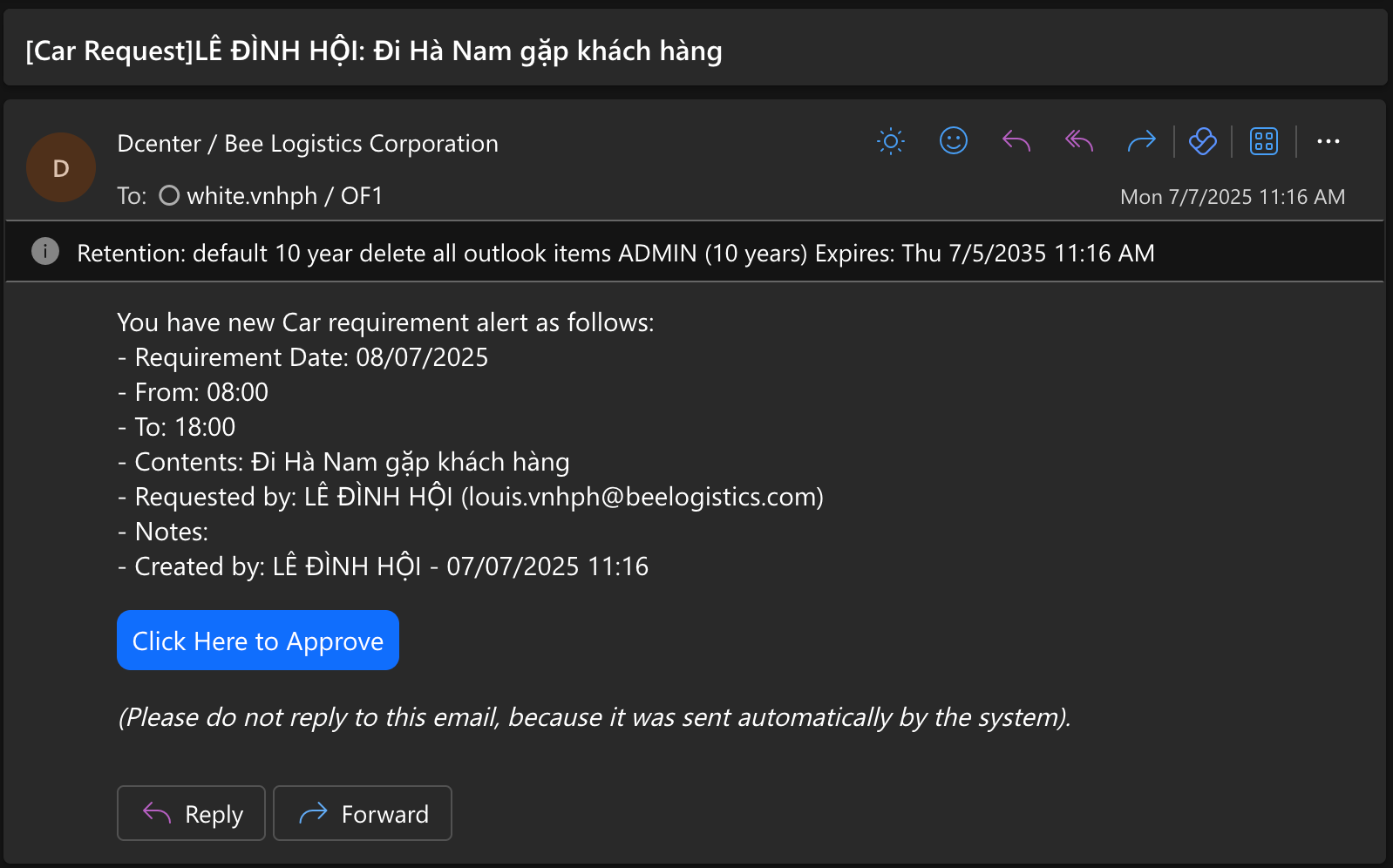
Click on Click Here to Approve to approve the request, a new web page will open
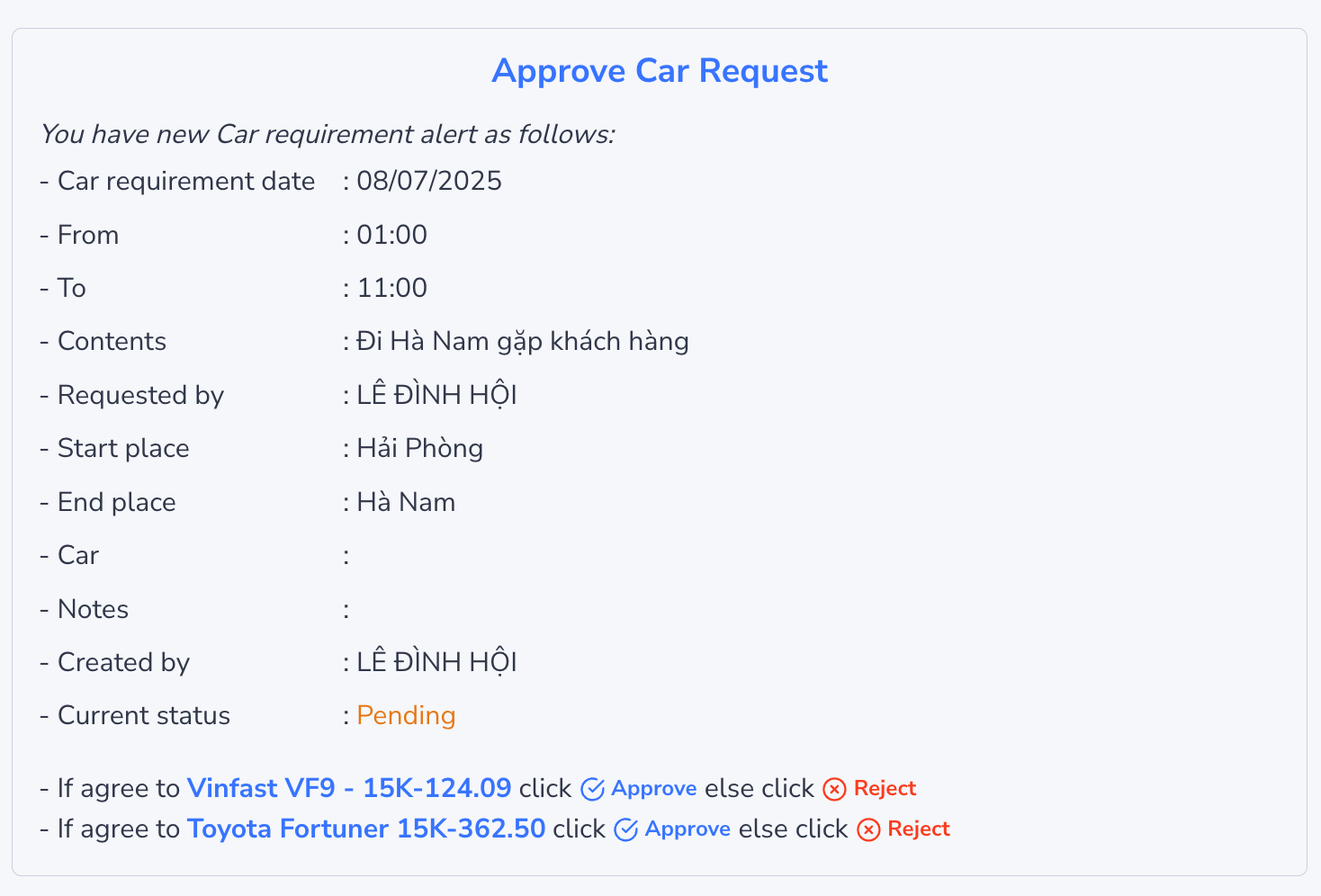
Click Approve to approve/Reject to reject the corresponding car request
For approved requests, the screen will display as follows

After approval/rejection, the requester will receive a notification email about the approval/rejection
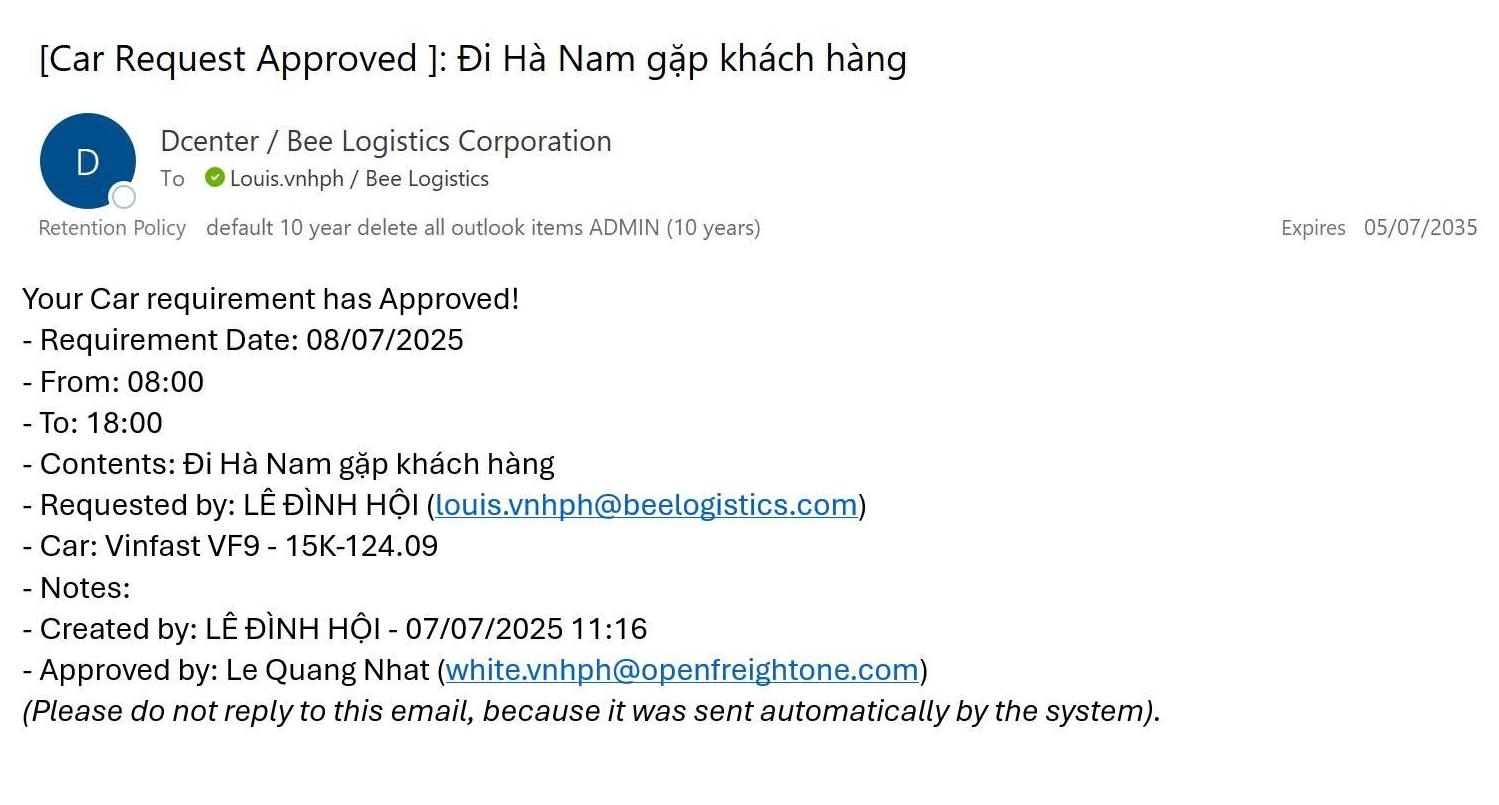
The approved task is displayed on the calendar as follows, with status Approved
Meeting Room Booking:
1. Select Menu Meeting/Training Schedule -> Click on the date you want to book a meeting room.
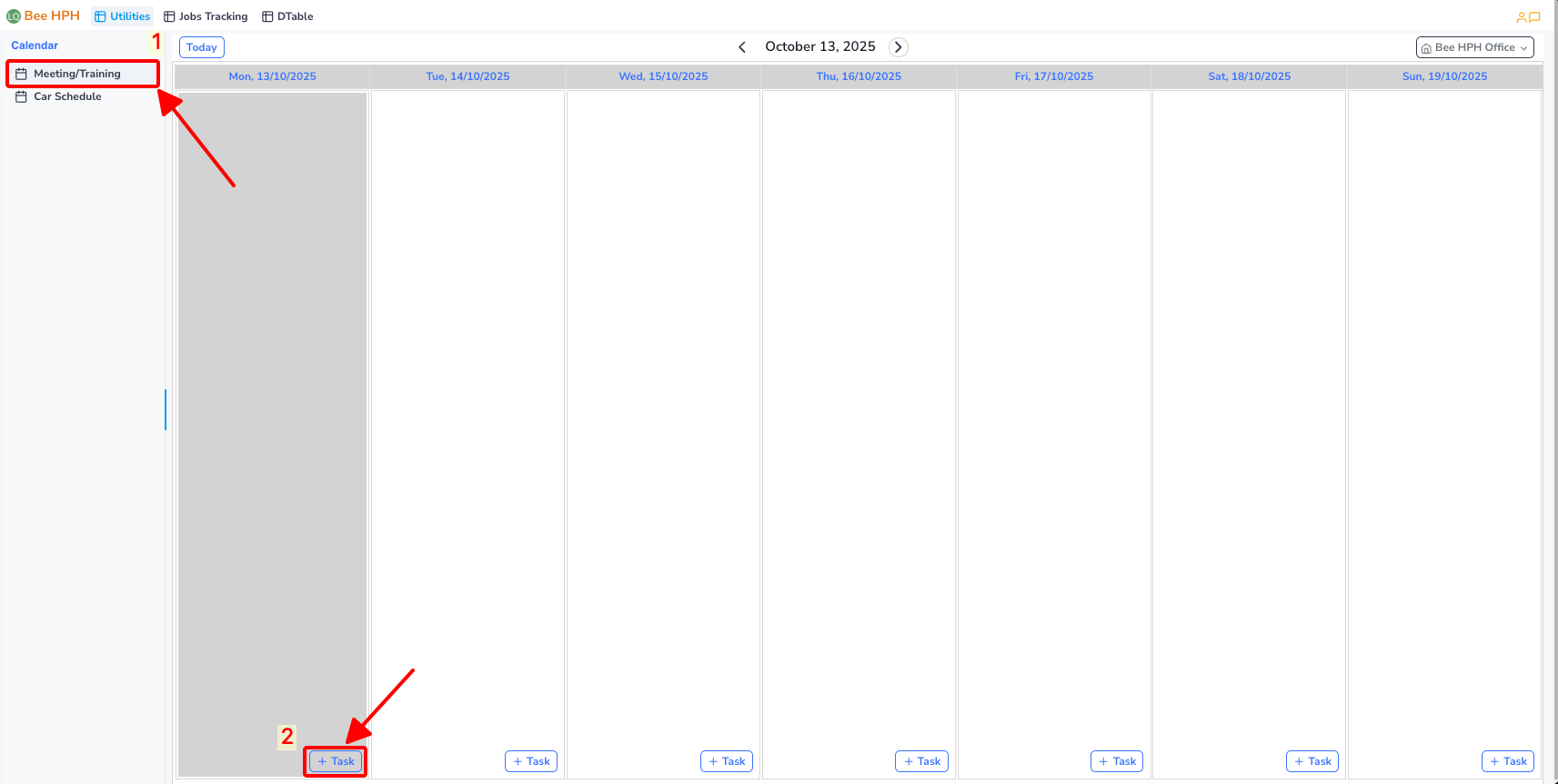
Booking screen:
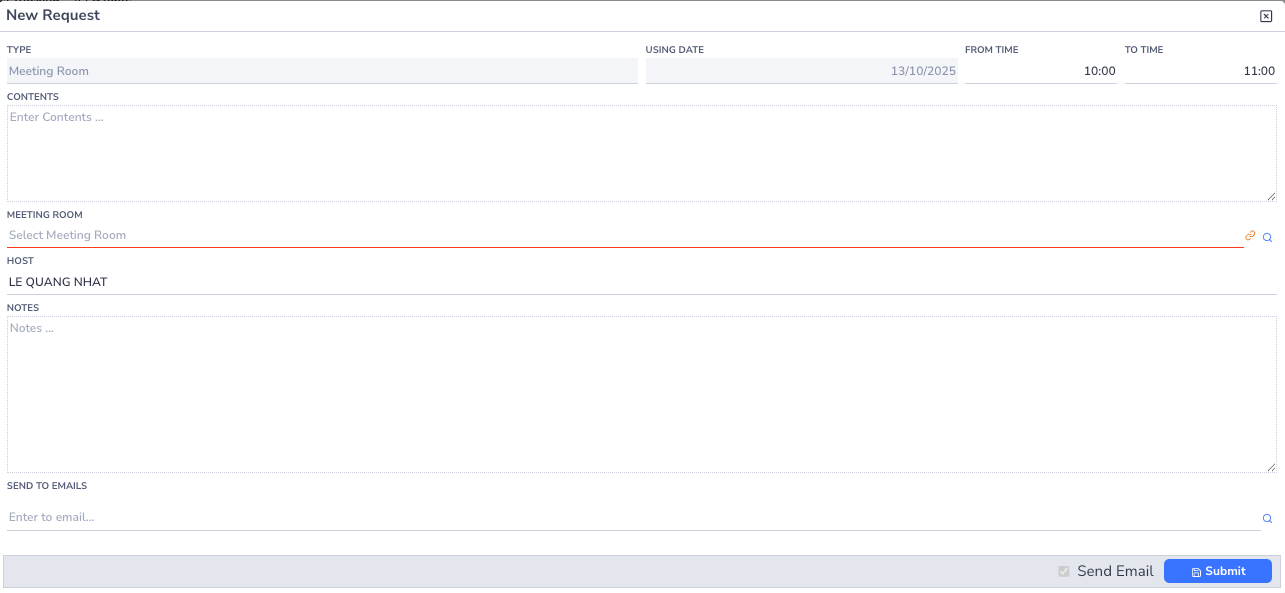
2. Fill in required information
Required information:
- From time
- To Time
- Meeting Room
- Host
4. You can add notification emails in the Send To Emails section
5. Click Create

The created task is displayed on the calendar as follows:
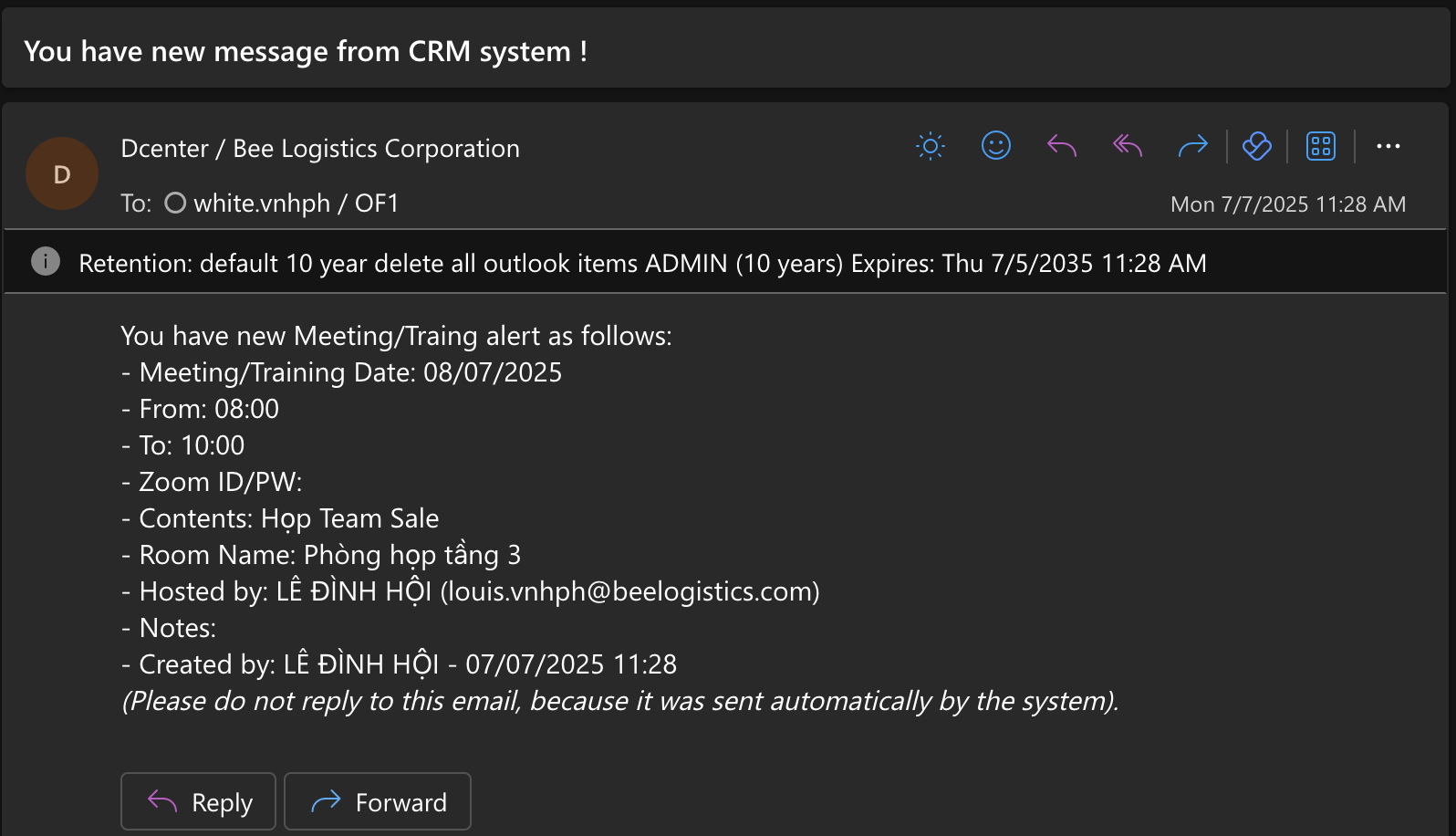
Notification email: